
MIDI Selector tool created
Windows Vista and later no longer include the MIDI mapper that was used in earlier Windows versions to route MIDI output to the preferred device. Vista did away with this, supporting only the rather underwhelming "Microsoft GS Wavetable Synth". While this is adequate for most users, it simply won't do if you have a proper MIDI synth for retro gaming or for playing MIDI files through Media Player. There exist several tools on the net that can change the default MIDI output device, but it appears there are differences in registry keys used between Windows Vista and Windows 7. The tool for one simply won't work on the other, so unless you knew which one to use, you'd still be stuck with Microsoft's softsynth.
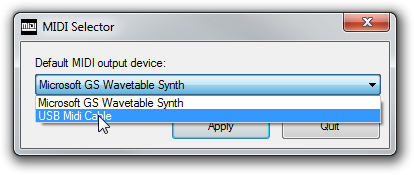
Since I enjoy using a Roland MT-32 and a Roland SC88Pro (through a USB adapter) for some proper MIDI music as well as playing games through DOSBox on both OSes, I needed a way to set the default MIDI output device without having to hunt for the correct program. Instead, I made one myself that works with both Vista and Windows 7. I haven't tried Windows 8 yet, nor do I intend to do that for the time being.
The tool itself and the C++ source code can be downloaded off the tools page.
Sidebar: making sure you hear your MIDI module
If you have an external MIDI module you have probably hooked up its Line Out to your internal (or on-board) soundcard's Line In. Still, that doesn't mean you'll actually hear the sound the synth produces. Whereas drivers for older Windows versions frequently exposed volume sliders and mute/enable checkboxes for each of the sound card's inputs, the sound system has changed drastically in Windows Vista and again (for the better) in Windows 7.
Windows 7
To pipe the MIDI synth's output from your soundcard's Line In to your speakers, go to the Control Panel, open the "Hardware and Sound" section. In the "Sound" subsection, choose "Manage audio devices". In the panel that pops up, open the "Recording" tab, double-click on the Line In device to open its properties. In the properties panel, go to the "Listen" tab and check the box "Listen to this device".
Windows Vista
On Windows Vista, things are much more dependent on your sound card driver. Again, go to the Control Panel, open the "Hardware and Sound" section. In the "Sound" subsection, choose "Manage audio devices". In the panel that pops up, open the "Playback" tab, double-click device used for output (probably "Speakers") to change its properties, then switch to the "Levels" tab.The output volume for each input should be listed there. So make sure Line In is at a suitable volume level and not muted.
If you don't get any sound after enabling this, you may need to set the Line In as the default recording device on the "Recording" tab and possibly start a program such as Sound Recorder or the applet installed with your sound card driver to enable input.